
Computers often lose performance over time due to software accumulation, thermal issues, and storage limitations. Background processes and startup programs compete for resources, while dust buildup can lead to thermal throttling. Physical wear on components and overcrowded solid-state drives further contribute to a gradual decrease in system speed.
Routine maintenance can often restore performance without the need for hardware upgrades. Users should manage startup applications, ensure clear airflow, and maintain free space on primary drives. Identifying specific bottlenecks through simple diagnostic checks helps determine whether a machine requires cleaning, software optimization, or replacement.
What is slowing down your PC?
Your computer was quick when it was new. Now it hesitates, takes longer to start and seems to work harder than it used to. Four common forces can gradually chip away at performance: software build-up, heat and dust, ageing hardware and an overcrowded SSD.

Slow computers are not all slow for the same reason
Some performance problems arrive gradually. Others only appear when the machine gets hot, runs short of storage or has too much happening in the background. Start by looking for the pattern.
Software build-up
Startup programs, background processes and years of installed software compete for resources.
Heat & dust
Dust restricts cooling, raising temperatures and encouraging thermal throttling.
Hardware ageing
Fans and electronic components can become less reliable after years of use and heat cycles.
SSD crowding
A nearly full solid-state drive has less free space available for efficient data management.
Software build-up: the startup traffic jam
Every application you install has the potential to add services, update helpers, launchers and startup entries. One or two make little difference. Years of them can leave Windows doing a surprising amount of work before you have opened anything yourself.
Think of a fresh Windows installation as a tidy desk. Over time, the desk fills with shortcuts, utilities and unfinished jobs. The computer may still be capable of running quickly, but it is spending more time managing everything around the work you actually want to do.
Heat and dust: the silent performance killer
Cooling systems rely on air moving freely across heatsinks and through the case. Dust builds up exactly where that air flows, coating fan blades, blocking heatsink fins and trapping heat around the components.

Why does heat make the PC feel slow?
Modern processors protect themselves. When CPU or GPU temperatures climb too far, they can reduce clock speeds and power. That self-protection is known as thermal throttling.
The result can be confusing: the computer has not necessarily failed, but it may perform noticeably worse once it becomes hot.
Airflow matters
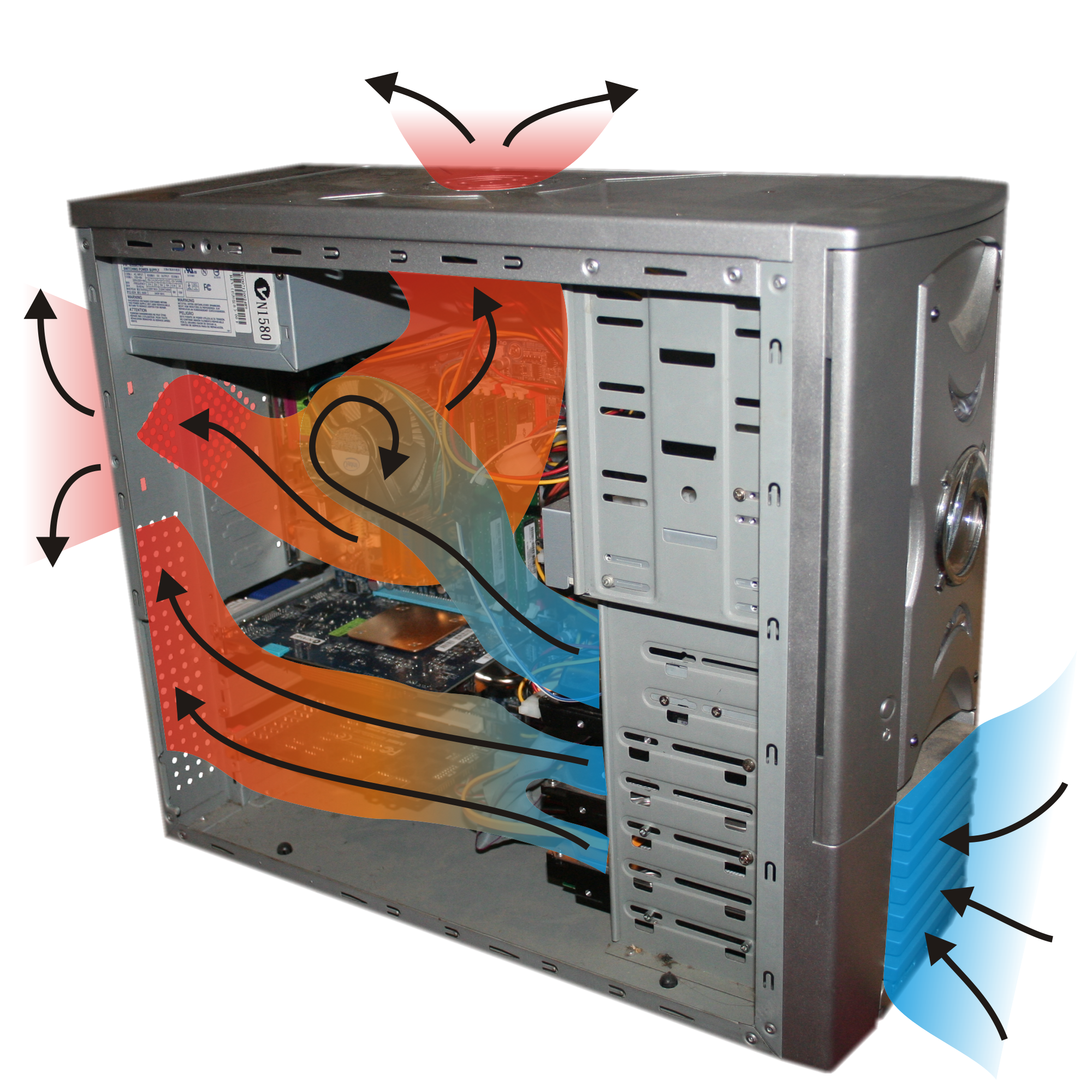
Good case airflow brings cooler air in and moves warm air out. Dust filters, clear vents and working fans all help. A visually clean case can still have a heatsink packed with dust, so inspect the fins as well as the outside of the computer.
For routine maintenance, power the PC down, unplug it and carefully remove dust from filters, fan blades and heatsinks. Avoid letting compressed air spin a fan at extreme speed; hold the fan still while cleaning it.
Hardware ageing: years of heat and use do matter
Electronic components usually last for years, but nothing lasts forever. Moving parts such as fans wear most obviously, while long-term heat stress can also contribute to gradual electronic degradation.
Hardware ageing is usually a slower process than software build-up or dust-related overheating. That is why it makes sense to rule out the easy maintenance problems before assuming the processor itself has simply become “too old”.

SSD crowding: give solid-state storage some breathing room
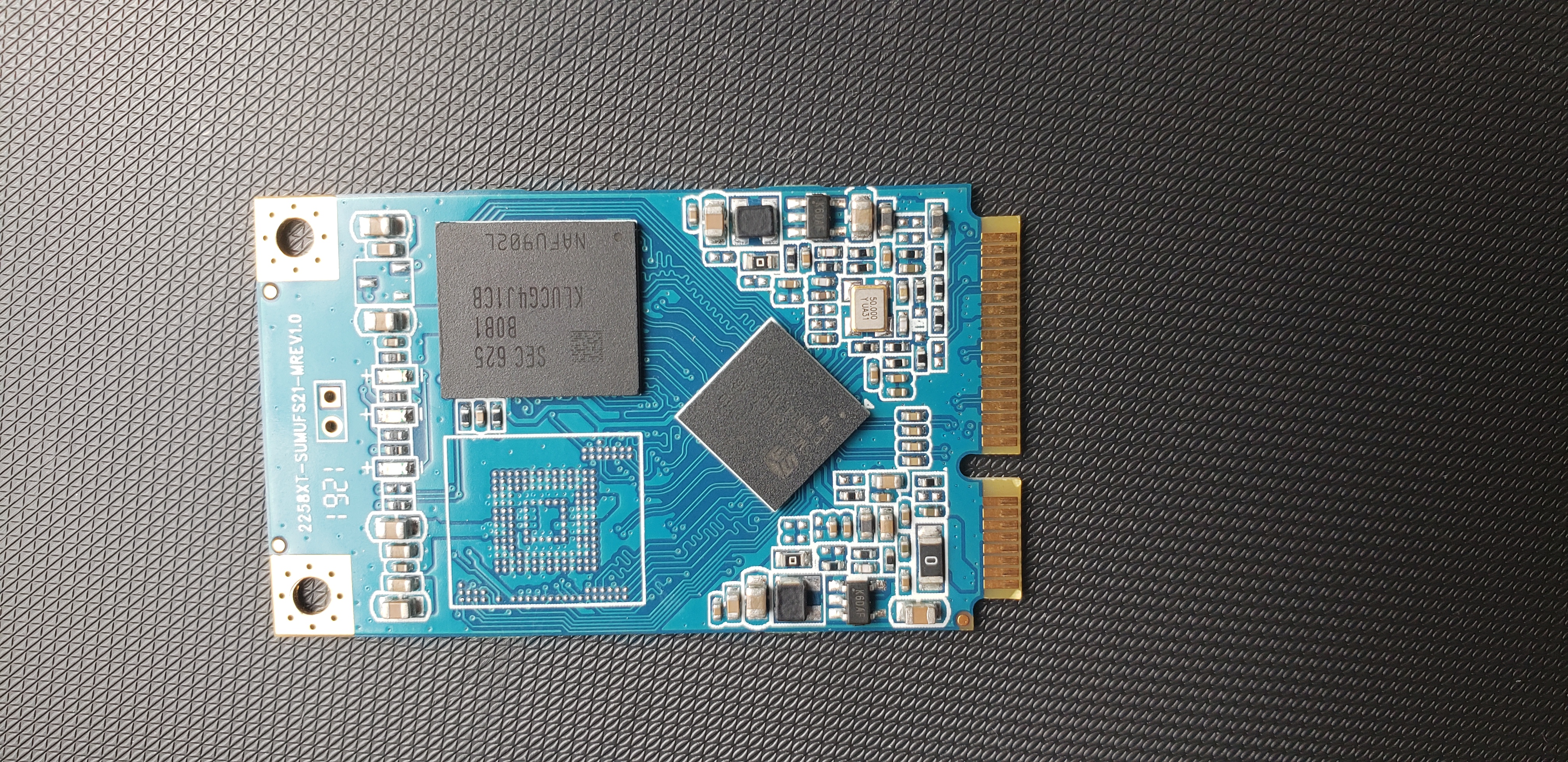
A solid-state drive needs free flash cells to manage new writes efficiently. As the drive becomes very full, the controller has less room to work with and write performance can suffer.
How full is too full?
The source guide recommends keeping roughly 15–20% of the SSD free. That gives the drive spare capacity for housekeeping and gives Windows room for updates, temporary files and application caches.
Think of a nearly full car park. Finding a space is easy when half the bays are empty. At 99% full, every new arrival requires more searching and rearranging. SSD management is more complex than that analogy, but the basic idea is useful.
A 10-minute PC health check
Before buying upgrades or replacing the machine, collect a few clues. These simple checks can quickly point you towards the likely bottleneck.
Before buying a new PC…
A slow computer does not automatically mean an obsolete computer. It may still have plenty of performance available, but background software, poor cooling or an overcrowded drive can stop you feeling it.
Leave a Reply